Table of Contents
- What Exactly Is a Shortcode?
- The Three Types of Shortcodes
- Built-in Shortcodes: What WordPress Gives You Free
- Popular Plugin Shortcodes
- How to Use Shortcodes in WordPress
- Creating Custom Shortcodes
- Troubleshooting Common Shortcode Issues
- Conclusion
1. What Exactly Is a Shortcode?
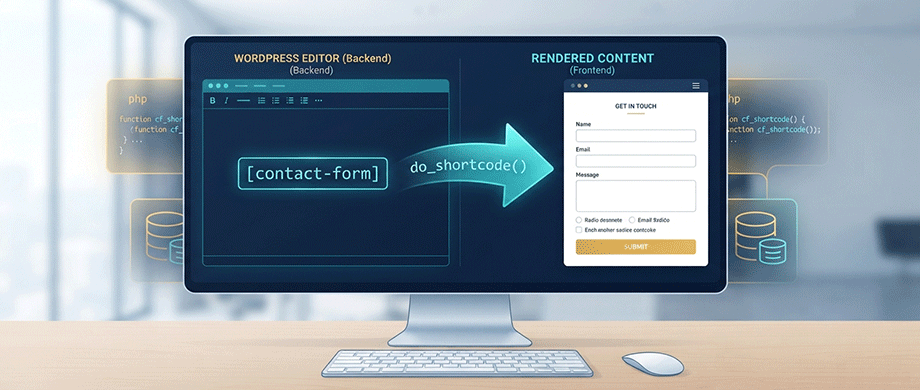
The Shortcut Code
The term "shortcode" is a combination of "shortcut" and "code"—and that's exactly what it is. It's a small piece of text that acts as a placeholder for more complex functionality.
Think of it like a magic word: you type a simple command, and WordPress does all the heavy lifting to display something far more complex. A shortcode like [interactive_map] might render an entire interactive SVG map with dozens of pins, tooltips, and custom styling—but all you had to type was 16 characters.
How Shortcodes Work Under the Hood
When you publish or view a page containing a shortcode, WordPress scans the content for square brackets and processes them through its Shortcode API. Here's what happens step by step:
1. Registration: A plugin or theme registers the shortcode using add_shortcode('tag_name', 'callback_function'), associating a simple tag with a PHP function.
2. Detection: When a page loads, WordPress scans the content for square brackets using the do_shortcode() function.
3. Execution: If a registered shortcode is found, WordPress passes any attributes and content to the associated callback function.
4. Rendering: The PHP function runs, generating HTML that WordPress inserts in place of the shortcode.
5. Display: The visitor sees the fully rendered content—the shortcode itself is never visible to them.
For example, the built-in gallery shortcode [gallery ids="45,46,47"] triggers WordPress to query the media library for those specific images and output them as a formatted gallery.
2. The Three Types of Shortcodes
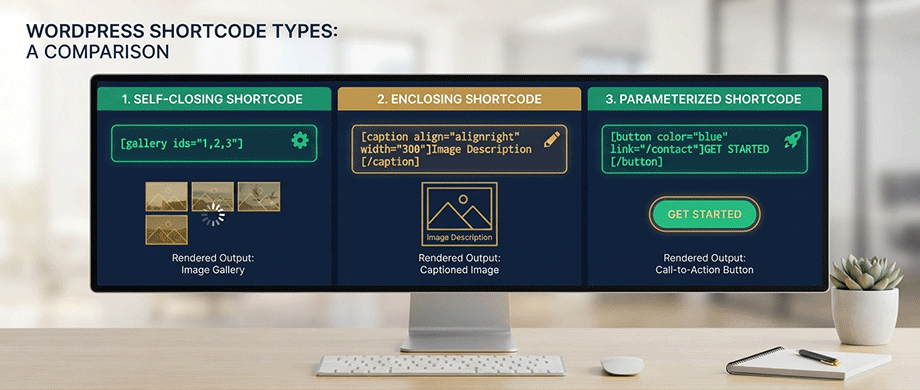
Self-Closing Shortcodes
The simplest type includes only one tag with no content inside. These are used for features that don't need any user-supplied text.
[gallery].
[contact-form].
[youtube].
To customize a self-closing shortcode, you add attributes (parameters) like this.
[gallery ids="45,46,47" columns="3" size="large"].
Enclosing Shortcodes
These have both an opening and closing tag, with content placed between them. This is useful when you need the shortcode to wrap around user-supplied content, like HTML elements do.
[caption align="center"]This image has a caption[/caption].
[button color="blue"]Click Here[/button].
Parameterized Shortcodes
These pass specific instructions to the shortcode's function through attributes. Multiple attributes can be included, each modifying how the shortcode behaves.
[products limit="8" columns="4" orderby="popularity"].
[contact-form-7 id="42" title="Contact Form"].
3. Built-in Shortcodes: What WordPress Gives You Free
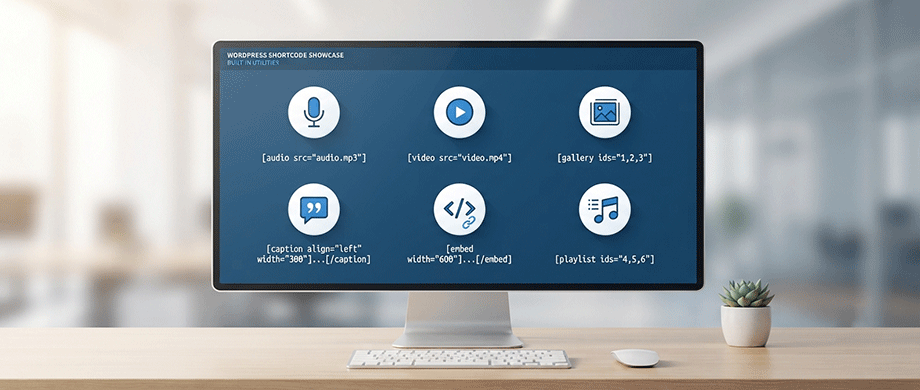
When you install WordPress, you get a set of built-in shortcodes ready to use without any additional plugins. These cover the most common content needs and are a great starting point for any site.
Visual Content Shortcodes
Images and Galleries
The [gallery] shortcode handles all your image display needs. The basic version [gallery] automatically shows all images attached to your post. For more control, you can specify exactly which images to show and how they should appear. For instance, you can select specific images by their ID numbers and organize them in a clean grid layout, perfect for a travel blog's photo diary or a product showcase for an online store. You can also randomize the display order to keep returning visitors engaged.
Captioned Content
For adding context to images or embedded content, [caption] lets you wrap explanatory text around visual elements with alignment options like left, center, or right. This is particularly useful when you need to provide detailed attribution, explain a complex diagram, or simply enhance an image with a descriptive label.
Multimedia Shortcodes
Audio and Video Players
WordPress simplifies media embedding. The [audio] shortcode supports common formats like MP3 and M4A, making it easy to add podcasts or music samples. The [video] shortcode handles MP4, M4V, and WEBM formats for everything from product demos to video tutorials. Both can be configured with options like autoplay, loop, and custom dimensions.
Media Playlists
For content creators with multiple related files—like a series of podcast episodes or a music album—the [playlist] shortcode creates an organized player. Users can browse through a list of audio or video files, selecting what they want to play. This is a clean, user-friendly way to present collections without cluttering your page with multiple individual players.
Embedding External Content
The [embed] shortcode provides a flexible way to include external content. While WordPress automatically embeds many URLs, this shortcode gives you precise control over the dimensions of the embedded item. For instance, you can set exact width and height parameters to ensure a YouTube video or a social media post fits perfectly within your page layout.
4. Popular Plugin Shortcodes

While built-in shortcodes cover basic needs, plugins extend WordPress functionality through specialized shortcodes that millions of sites rely on daily.
Contact Form 7
The most widely-used form plugin employs straightforward syntax:
[contact-form-7 id="123" title="Contact Form"].
Within forms, field shortcodes create the interface:
[text* your-name]
[email* your-email]
[textarea your-message]
[submit "Send"]
WooCommerce
E-commerce functionality comes through product display shortcodes:
[products limit="8" columns="4" orderby="popularity"]
[products category="electronics" on_sale="true"]
[add_to_cart id="99" show_price="true"]
[woocommerce_cart]
[woocommerce_checkout]
WordPress Map Plugins
Travel blogs and real estate websites use interactive map shortcodes to embed dynamic maps like US, World maps anywhere:
[us_map]
[world_map]
[europe_map]
Page Builders
Modern builders like Elementor and Divi generate shortcodes behind their visual interfaces. If you want flexibility without the overhead of a full page builder, shortcode plugins like Shortcodes Ultimate provide over 50 options including buttons, tabs, accordions, and columns
5. How to Use Shortcodes in WordPress
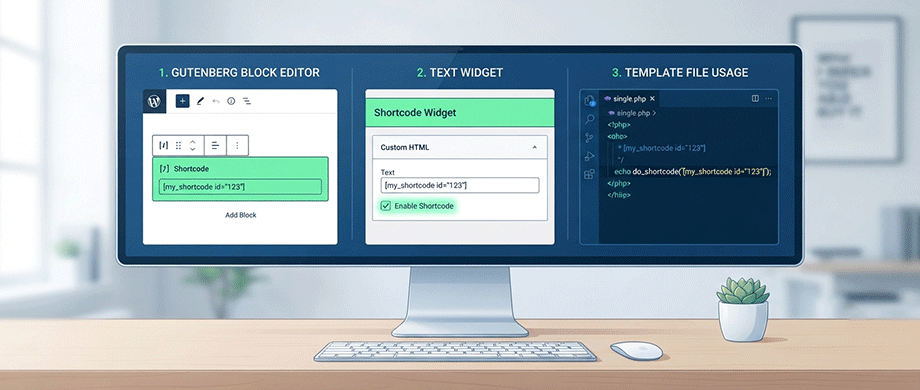
In the Gutenberg Block Editor
Using shortcodes in the modern editor is straightforward:
- Click the plus (+) icon where you want to add the shortcode.
- Search for "Shortcode" in the block browser.
- Click the Shortcode block to add it.
- Type or paste your shortcode into the block.
- Preview or publish to see the rendered output.
In the Classic Editor
Simply type or paste the shortcode directly into the content area where you want it to appear.
In Widgets
Text widgets don't process shortcodes by default. Enable this functionality with a simple filter added to your theme's functions.php file:
add_filter('widget_text', 'do_shortcode');
In Theme Template Files
To use a shortcode directly in your theme files, use the do_shortcode() function
echo do_shortcode('[contact-form-7 id="123" title="Contact Form"]');
6. Creating Custom Shortcodes
The Basic Structure
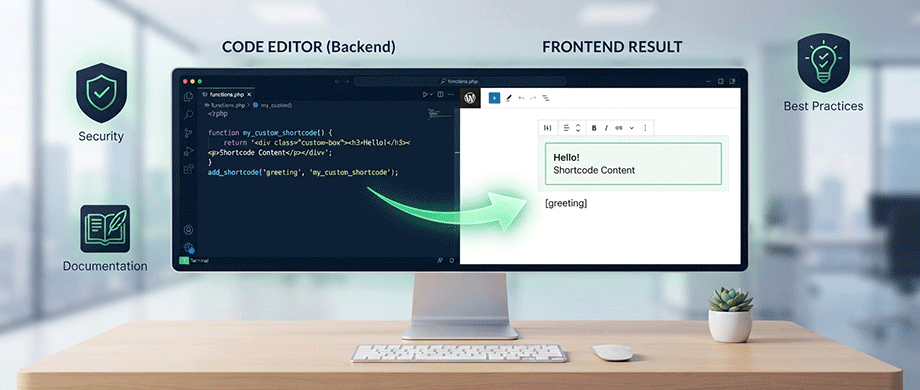
Creating a custom shortcode requires basic PHP knowledge. Add code to your theme's functions.php file or (preferably) create a dedicated plugin for better portability.
Simple Example: A shortcode that displays the current year:
PHP
function custom_button_shortcode($atts, $content = null) {
    $atts = shortcode_atts(array(
        'url'   => '#',
        'color' => 'blue'
    ), $atts);

    return '<a href="' . esc_url($atts['url']) . '" class="btn-' . esc_attr($atts['color']) . '">' . esc_html($content) . '</a>';
}

add_shortcode('button', 'custom_button_shortcode');
Creates buttons with [button url=" https://example.com " color="red"]Click Here[/button]
Dynamic Content: Pull data directly from WordPress:
PHP
function recent_posts_shortcode($atts) {
    $atts = shortcode_atts(array(
        'count'    => 5,
        'category' => ''
    ), $atts);

    $posts = get_posts(array(
        'numberposts' => $atts['count'],
        'category_name' => $atts['category']
    ));

    $output = '<ul class="recent-posts">';
    foreach ($posts as $post) {
        $output .= '<li><a href="' . get_permalink($post->ID) . '">' . esc_html($post->post_title) . '</a></li>';
    }
    $output .= '</ul>';
    return $output;
}

add_shortcode('recent-posts', 'recent_posts_shortcode');
Now visitors can display recent posts anywhere with [recent-posts count="3" category="news"].
Security Best Practices
Shortcode vulnerabilities often come from poor input sanitization. Always sanitize inputs and escape outputs:
esc_html() for text content.
esc_attr() for HTML attributes.
esc_url() for links.
wp_kses_post() for content with safe HTML.
7. Troubleshooting Common Shortcode Issues
Shortcodes Display as Plain Text
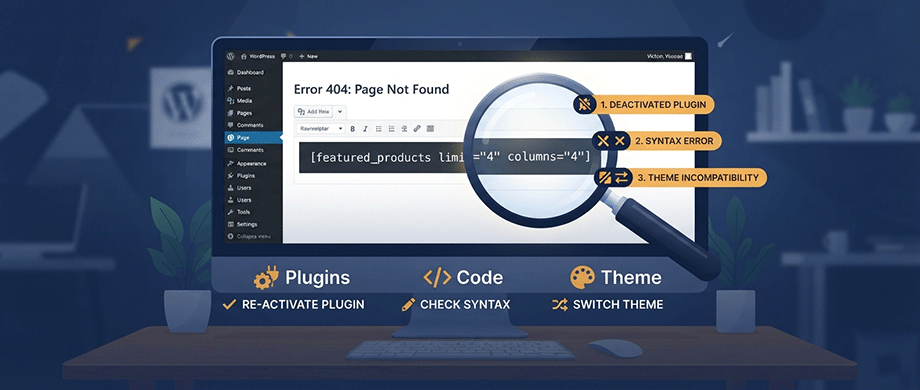
When shortcodes appear as text instead of rendering, check:
- Plugin deactivated: Ensure the shortcode provider is active.
- Syntax errors: Verify proper brackets and spacing.
- Theme compatibility: Some themes bypass shortcode processing.
Common fix: Replace get_the_content() with apply_filters('the_content', get_the_content()) in template files.
Debugging Shortcodes
Enable debug mode in wp-config.php to troubleshoot:
PHP
define('WP_DEBUG', true);
define('WP_DEBUG_LOG', true);
Test with a simple shortcode to isolate issues:
PHP
function test_shortcode() {
return 'Shortcodes working!';
}
add_shortcode('test', 'test_shortcode');
Performance Considerations
Each shortcode requires processing, which can accumulate on content-heavy pages. Best practices include:
- Limit shortcodes per page.
- Cache database queries using WordPress Transients API.
- Minimize external API calls.
- Use conditional loading for assets—only load CSS/JS on pages that actually use the shortcodes.
Conclusion: Shortcodes Power Your Dynamic Content
WordPress shortcodes are one of the platform's most powerful features, enabling anyone—regardless of technical ability—to add complex, dynamic content to their website. From built-in shortcodes that handle galleries and media to plugin shortcodes that power e-commerce and interactive maps, this simple square bracket syntax unlocks endless possibilities.
Understanding how shortcodes work under the hood gives you the confidence to use them effectively. They save time, maintain consistency, and enable easy updates across your entire site. Whether you're pasting a ready-made shortcode from a plugin or creating your own custom functionality, you're tapping into the same WordPress Shortcode API that has served millions of sites since 2008.
If you are ready to add powerful dynamic content to your WordPress site, discover how our premium Interactive Map WordPress Plugins lets you embed beautiful, interactive SVG maps anywhere with a simple shortcode—making complex map visualizations as easy as typing [world_map].

About the Author
Botrous Kerolos has been designing and building interactive maps for the web since 2009 — from early Flash/SWF maps to modern SVG — and leads development at WP Map Plugins, helping WordPress sites turn static content into fast, accessible, interactive experiences.