Table of Contents
- Why Google Maps Embeds Suddenly Break
- Why a Broken Map Is Also an SEO Problem
- Pre-Migration Audit: What to Pull Before You Touch Anything
- Step-by-Step: Swapping the Embed for a Self-Hosted SVG Map
- Keeping Your Rankings Through the Switch
- Testing and Monitoring After the Migration
- Conclusion
1. Why Google Maps Embeds Suddenly Break
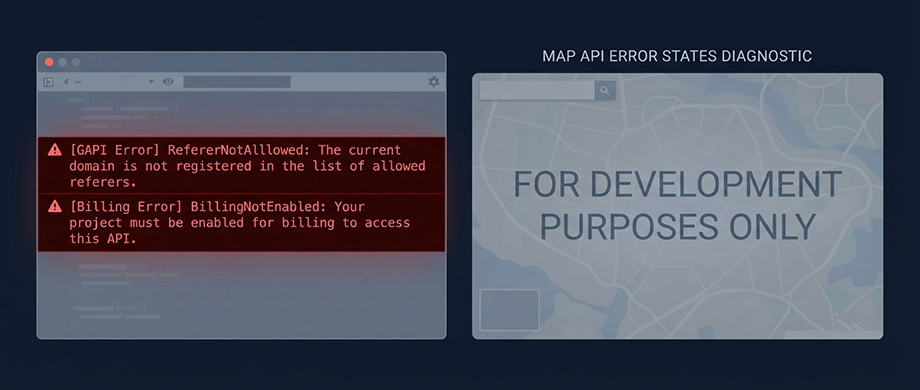
If your map has suddenly vanished, you are likely seeing one of three specific error codes in your browser’s console. These aren't random glitches; they are policy enforcements from the Google Maps Platform.
- RefererNotAllowedMapError: The most common error. It means your API key is restricted to specific domains, and the current URL (or a new subdomain, like ://yoursite.com) isn't on the "allow list".
- BillingNotEnabledMapError Even for free usage tiers, Google now requires a valid credit card on file. If the card expired or was never added, the map cuts out immediately.
- ApiNotActivatedMapError: You may have an API key, but you haven't specifically enabled the "Maps JavaScript API" in the Google Cloud Console library for that project.
The Quick Fix vs. The Real Fix:
You could just update your billing or fix the referrer list. However, if you are hitting these errors frequently or worrying about sudden price hikes (which can happen if traffic spikes), this is the "canary in the coal mine" signaling it’s time to own your map data rather than rent it.
2. Why a Broken Map Is Also an SEO Problem
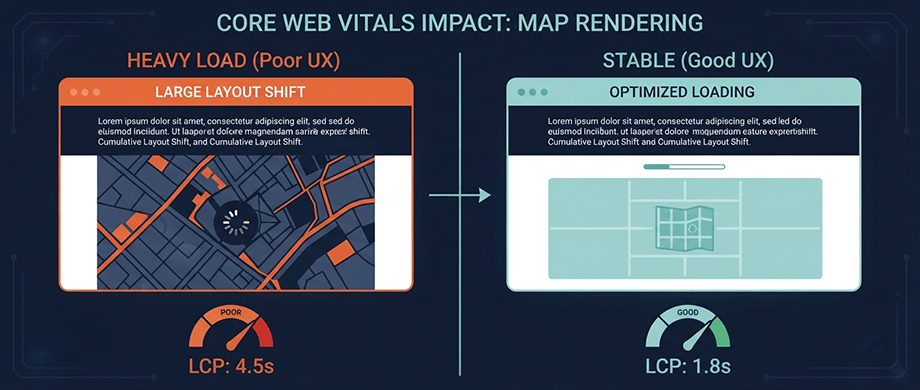
A broken map is not just a cosmetic issue; it is a technical SEO liability.
- Core Web Vitals Damage: A Google Map is an iframe that loads heavy external JavaScript. When it breaks or loads slowly, it often causes Cumulative Layout Shift (CLS). The browser reserves space for the map, but if the error message renders at a different size or pops in late, it shifts the rest of your page content, hurting your page experience score.
- "Thin" or Un-indexable Content: If your location data (addresses, store hours, descriptions) lives only inside the Google Maps iframe, Google's crawlers often cannot see it. To a search engine, a page with just a map embed looks like a blank page. If that map breaks, you have zero content and a broken user experience.
- Load Blocking: The Google Maps API is "render-blocking" by default in many implementations. If the API hangs or fails to authenticate, it can delay the rendering of the rest of your page, spiking your Largest Contentful Paint (LCP) time.
3. Pre-Migration Audit: What to Pull Before You Touch Anything

Don't delete your old map code yet. You need to "scrape" your own site to ensure you don't lose data.
- Export Your Pin Data: If you used "Google My Maps" to create your layer, go to the map menu and select "Export to KML/KMZ". This file contains all your pin coordinates and descriptions.
- Audit Existing Schema: Use the Schema Markup Validator to check if your page currently has LocalBusiness or Store structured data. If the schema was being generated dynamically by a plugin that wraps the Google Map, you will lose it when you remove the map. Note this down so you can manually rebuild it later.
- Baseline Metrics: Take a screenshot of your current PageSpeed Insights score (specifically Mobile Performance) and your Google Search Console "Page Experience" report. This will be your "Before" proof for the migration case study.
4. Step-by-Step: Swapping the Embed for a Self-Hosted SVG Map
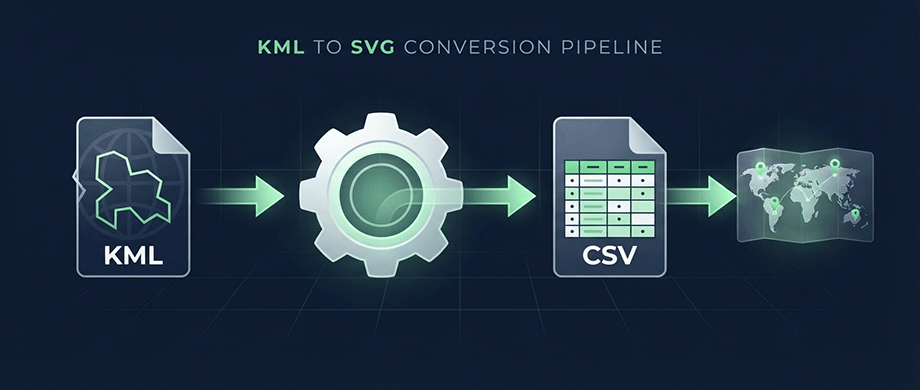
This process moves you from a "rented" iframe to an "owned" static asset.
Step A: Convert Your Data
Most self-hosted map plugins (including ours) ingest data via CSV or JSON, not Google's KML format.
- Tool: Use a free converter like Kml2Csv or an online tool to turn your KML export into a CSV file.
- Clean Up: Open the CSV in Excel/Sheets. Ensure you have clean columns for Latitude, Longitude, Location Name, and Description.
Step B: Import and Configure
- Upload the CSV to your WordPress map plugin.
- Styling: Unlike Google Maps, where you are stuck with their satellite/road tiles, SVG maps allow you to use CSS to match your brand colors exactly.
- The Swap: Replace the Google Maps
<iframe>or shortcode with your new SVG map shortcode.
Step C: Hard-Code the Critical Data
Crucial Step: Don't just rely on the map pins. Create a visually distinct HTML list of your locations (e.g., "Our Branches") below the map. This ensures that even if our plugin were to ever break, your address data is still hard-coded in plain HTML for Google to read.
5. Keeping Your Rankings Through the Switch

The biggest fear in migration is losing the "ranking signal" of the map. Here is how to protect it:
- Retain
LocalBusinessSchema: Since you removed the Google Map (which Google understands well), you must explicitly tell Google about your location using JSON-LD schema. - Add a script block with
"@type": "LocalBusiness"for your primary location. - Ensure the hasMap property in your schema points to your new page URL or the image file of the static map, rather than the old Google Maps embed link.
- Keep the Same URL: Do not change the page slug (e.g., /find-us/). If you must move the map to a new page, set up a 301 redirect immediately.
- Update Internal Anchors: If other pages on your site link to "See on Google Maps," update those text links to say "View our Locations" and point to your new interactive map section.
6. Testing and Monitoring After the Migration

Once the switch is live, verify the improvement.
- Core Web Vitals Check: Run PageSpeed Insights again. You should see a significant drop in Blocking Time and CLS because you are no longer loading the heavy Google Maps JavaScript library.
- Mobile Usability: Test the new map on a phone. SVG maps are often responsive by default, resizing perfectly without the "scroll trap" (where you get stuck scrolling inside the map instead of down the page) that plagues Google Maps embeds.
- GSC Crawl Stats: Watch Google Search Console for 2-3 weeks. Ensure the page remains indexed and that no new "Mobile Usability" errors appear.
Conclusion: The Strategic Shift From Renting to Owning
Migrating away from a broken embed isn't just a technical patch; it is a strategic upgrade for your site's health. By moving to a self-hosted SVG map, you trade unpredictable billing and API deprecations for total control and stability. You are no longer "renting" visibility from Google; you are owning your location data as a permanent, crawlable asset. Whether you have one location or one hundred, the result is the same: a faster site, happier users, and an SEO foundation that doesn't vanish when a credit card expires.

About the Author
Botrous Kerolos has been designing and building interactive maps for the web since 2009 — from early Flash/SWF maps to modern SVG — and leads development at WP Map Plugins, helping WordPress sites turn static content into fast, accessible, interactive experiences.